> ## Documentation Index
> Fetch the complete documentation index at: https://docs-docflow.textin.com/llms.txt
> Use this file to discover all available pages before exploring further.

# ファイルカテゴリの設定方法

## カテゴリ設定ページの開き方

1. ワークスペース一覧でワークスペースを選択し、**その他の操作 - 設定** をクリックします
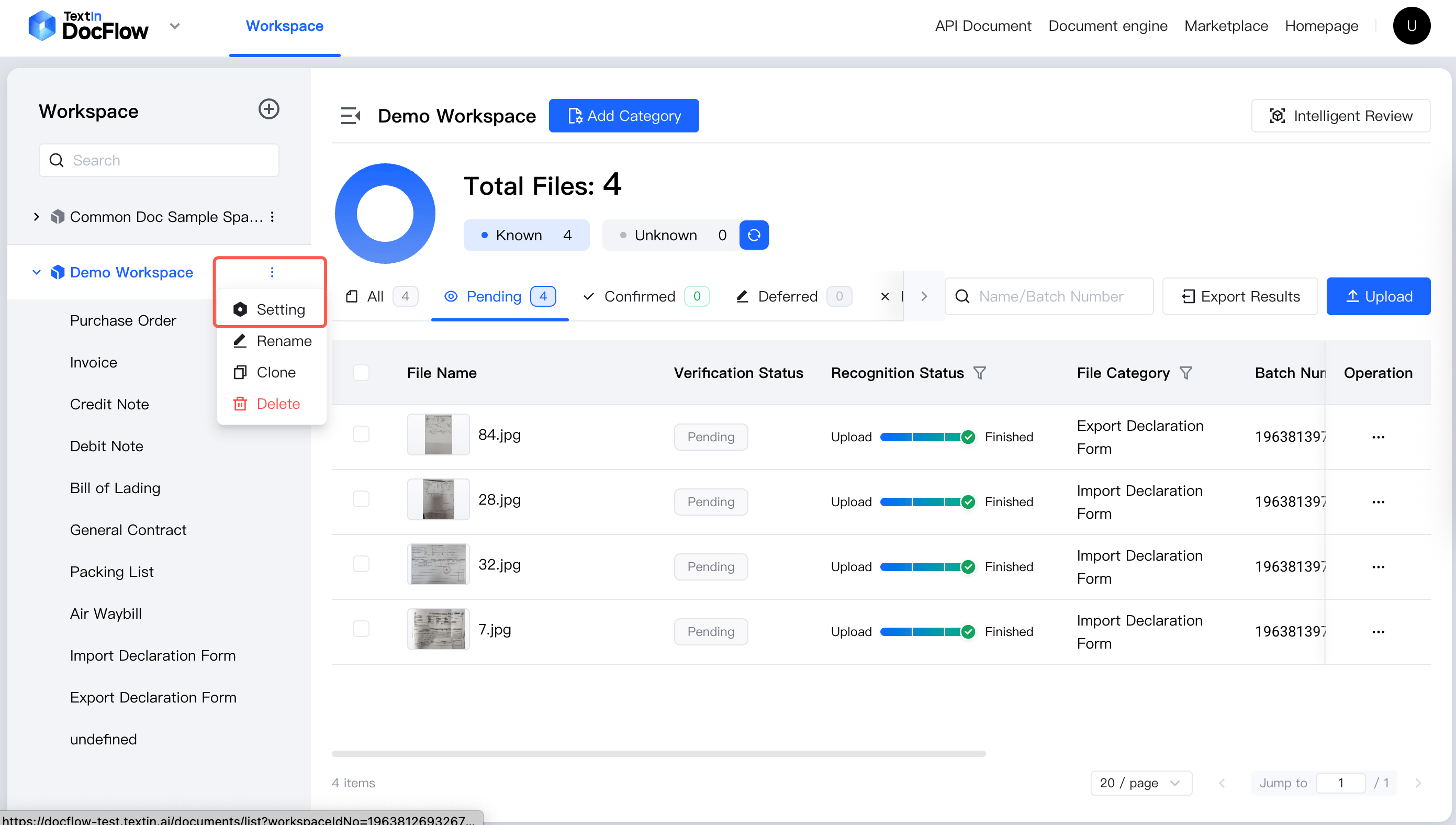
<img src="https://mintcdn.com/docflow/afoTfNkOjgAx6tmV/docflow/ja/images/get_workspace_id_step_1-en.png?fit=max&auto=format&n=afoTfNkOjgAx6tmV&q=85&s=c1595cb07e822129d7981f49c672472d" alt="workspace setting" width="2782" height="1576" data-path="docflow/ja/images/get_workspace_id_step_1-en.png" />

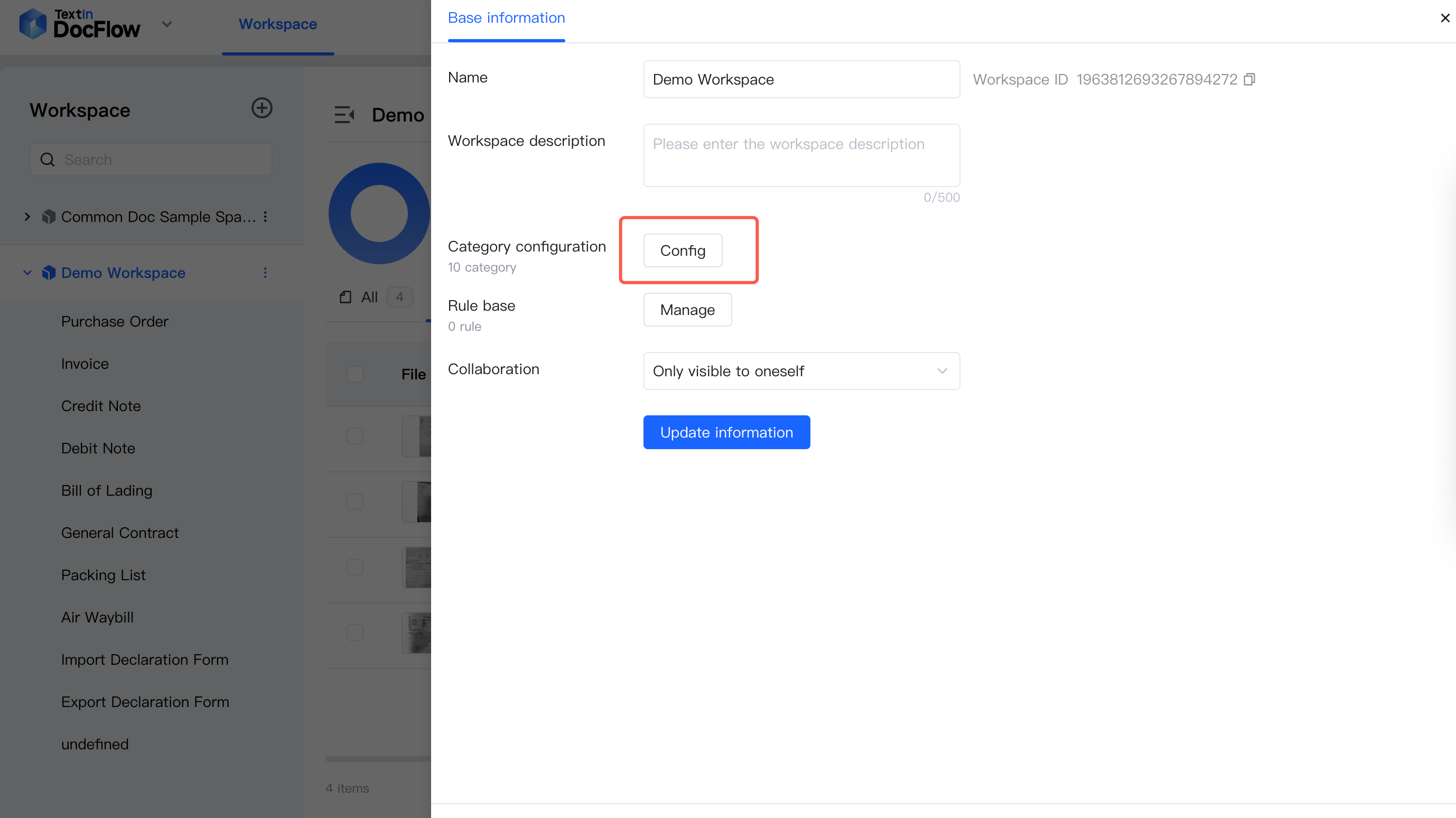
2. 表示されたスライドパネルで、カテゴリの **設定** をクリックしてファイルカテゴリ設定ページを開きます
<img src="https://mintcdn.com/docflow/afoTfNkOjgAx6tmV/docflow/ja/images/setup_category_step_2-en.png?fit=max&auto=format&n=afoTfNkOjgAx6tmV&q=85&s=85d67852f6a2c226cef778877e51272d" alt="workspace setting" width="2756" height="1548" data-path="docflow/ja/images/setup_category_step_2-en.png" />

## カテゴリサンプルファイルを追加

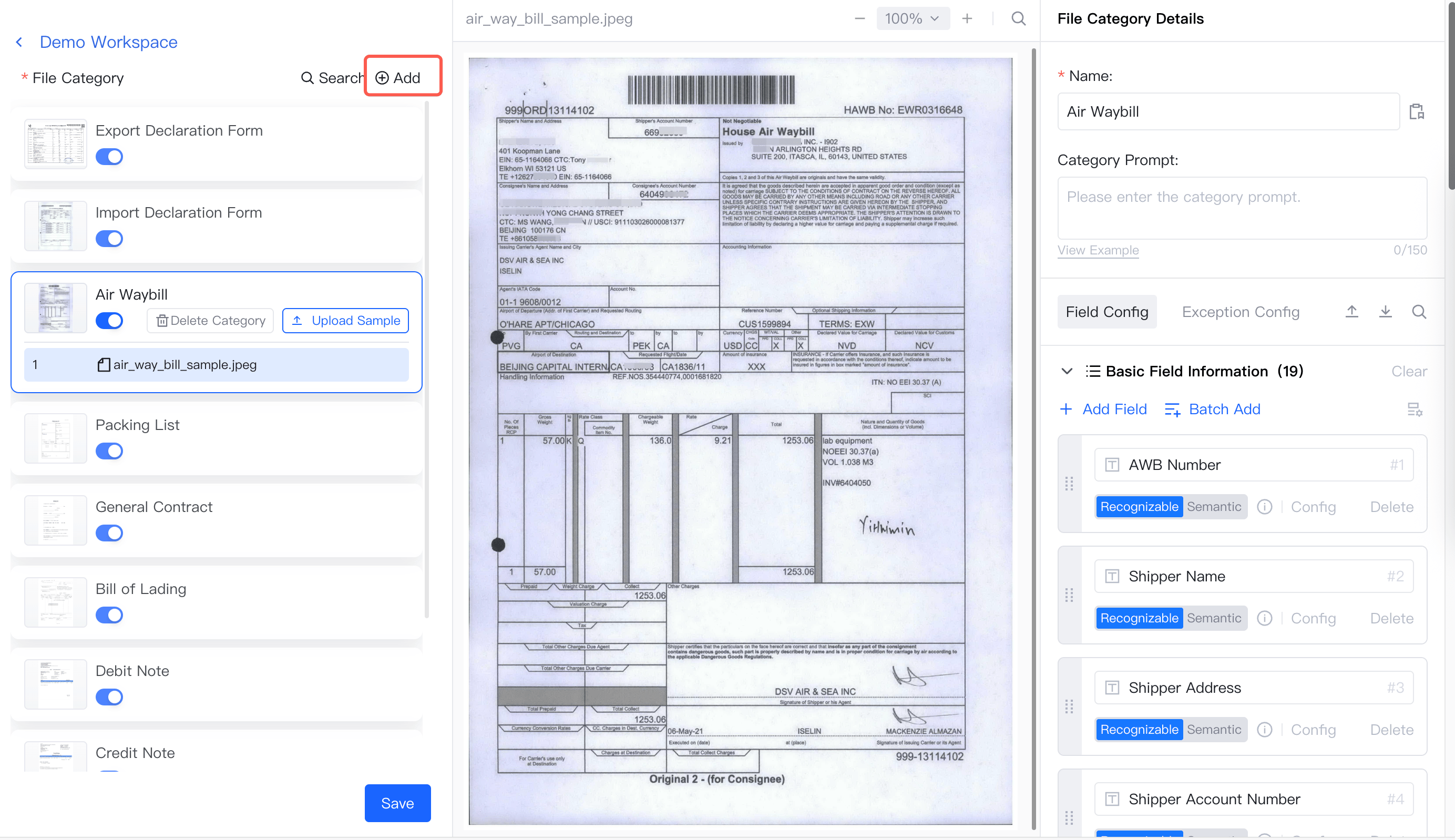
1. **カテゴリを追加** をクリックします
<img src="https://mintcdn.com/docflow/afoTfNkOjgAx6tmV/docflow/ja/images/setup_category_step_3-en.png?fit=max&auto=format&n=afoTfNkOjgAx6tmV&q=85&s=0d24059dc946213317383124358b35f9" alt="add category" width="2768" height="1598" data-path="docflow/ja/images/setup_category_step_3-en.png" />

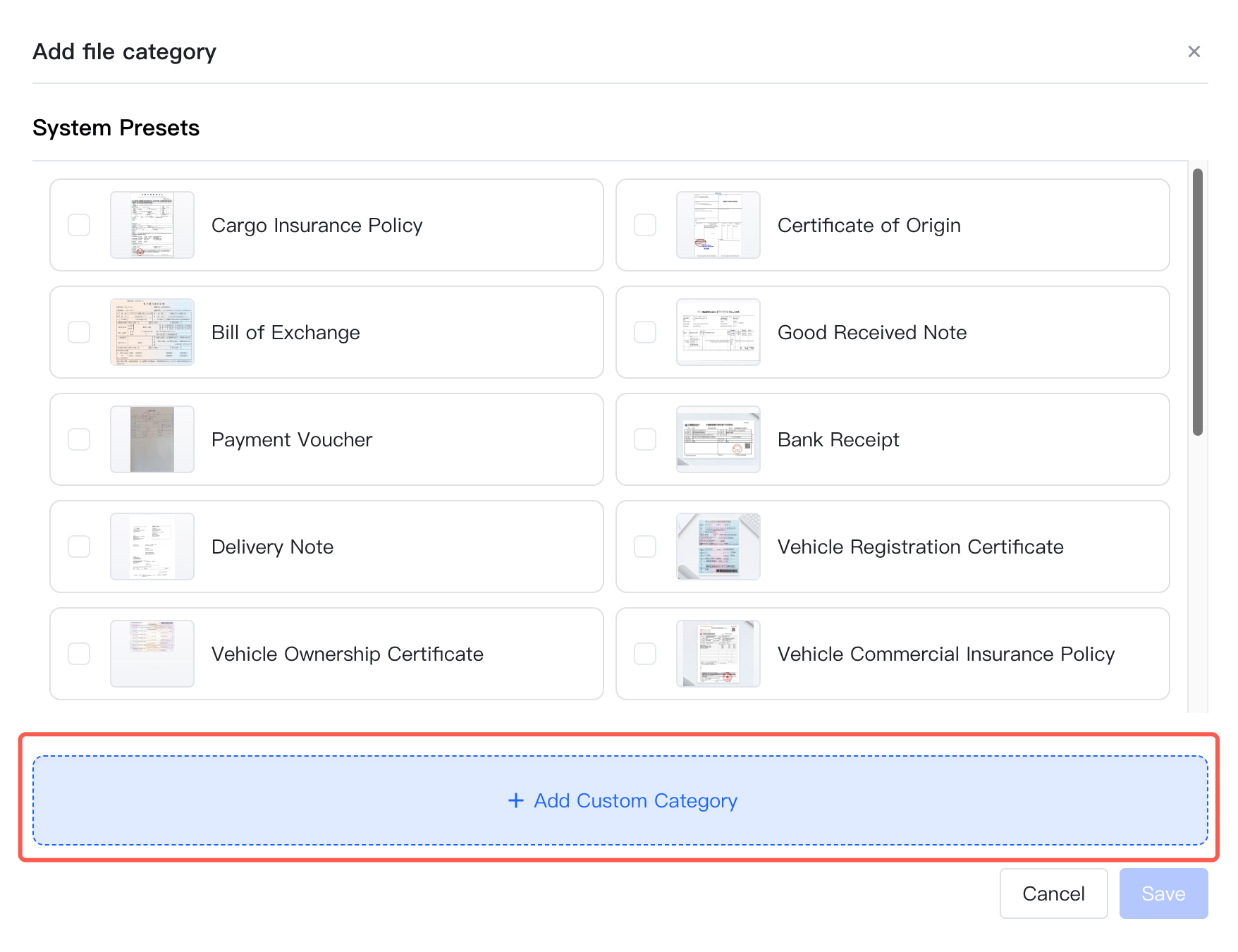
2. **カスタムカテゴリを追加** をクリックし、ファイルをアップロードします
<img src="https://mintcdn.com/docflow/afoTfNkOjgAx6tmV/docflow/ja/images/setup_category_step_4-en.png?fit=max&auto=format&n=afoTfNkOjgAx6tmV&q=85&s=dfb874478e4f6ce7a5cd4b51fab116f3" alt="add custom file" width="1756" height="1350" data-path="docflow/ja/images/setup_category_step_4-en.png" />

## 分類名を設定

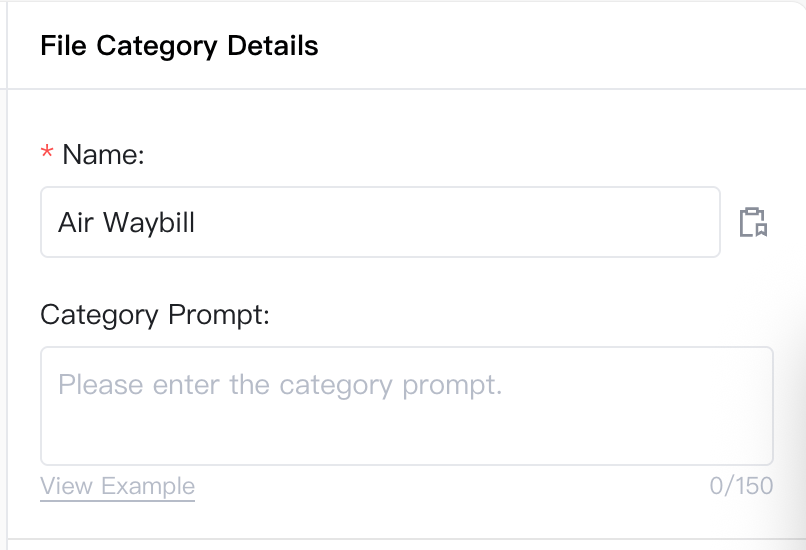
分類名を設定します

<img src="https://mintcdn.com/docflow/afoTfNkOjgAx6tmV/docflow/ja/images/setup_category_step_2.1-en.png?fit=max&auto=format&n=afoTfNkOjgAx6tmV&q=85&s=6c2d88e2f7d1ab23cf29f1a9fc0713be" alt="set category name" width="806" height="550" data-path="docflow/ja/images/setup_category_step_2.1-en.png" />

## サンプルフィールドを設定

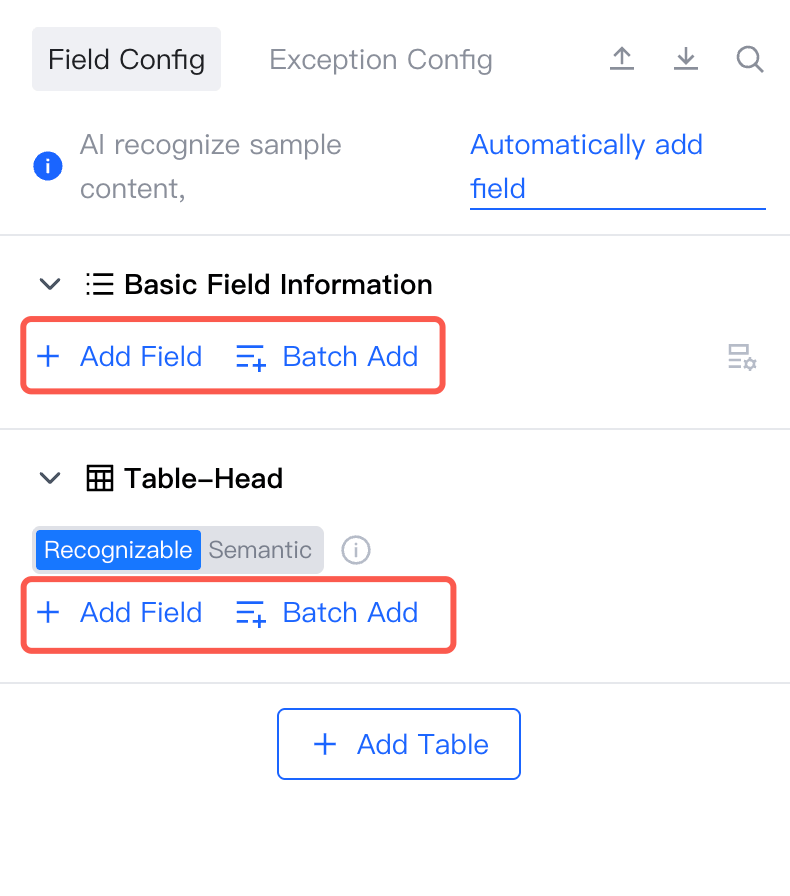
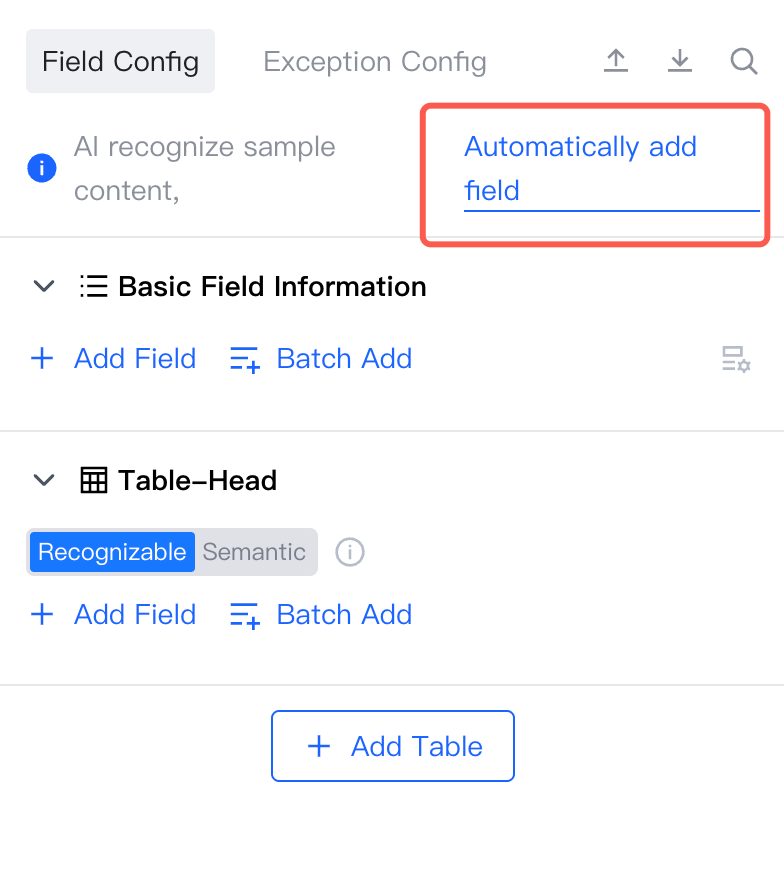
**フィールドを自動追加** をクリックすると、AI が文書にもとづいてフィールドを自動追加します
<img src="https://mintcdn.com/docflow/afoTfNkOjgAx6tmV/docflow/ja/images/setup_category_step_5.2-en.png?fit=max&auto=format&n=afoTfNkOjgAx6tmV&q=85&s=49445f5bd8aff9283ad3fff04c36b31c" alt="add fields automatically" width="784" height="870" data-path="docflow/ja/images/setup_category_step_5.2-en.png" />

手動でフィールドを追加、調整、削除することもできます

<img src="https://mintcdn.com/docflow/afoTfNkOjgAx6tmV/docflow/ja/images/setup_category_step_5.1-en.png?fit=max&auto=format&n=afoTfNkOjgAx6tmV&q=85&s=15207a10ee1a259c849aa752f900627e" alt="add fields manually" width="790" height="896" data-path="docflow/ja/images/setup_category_step_5.1-en.png" />

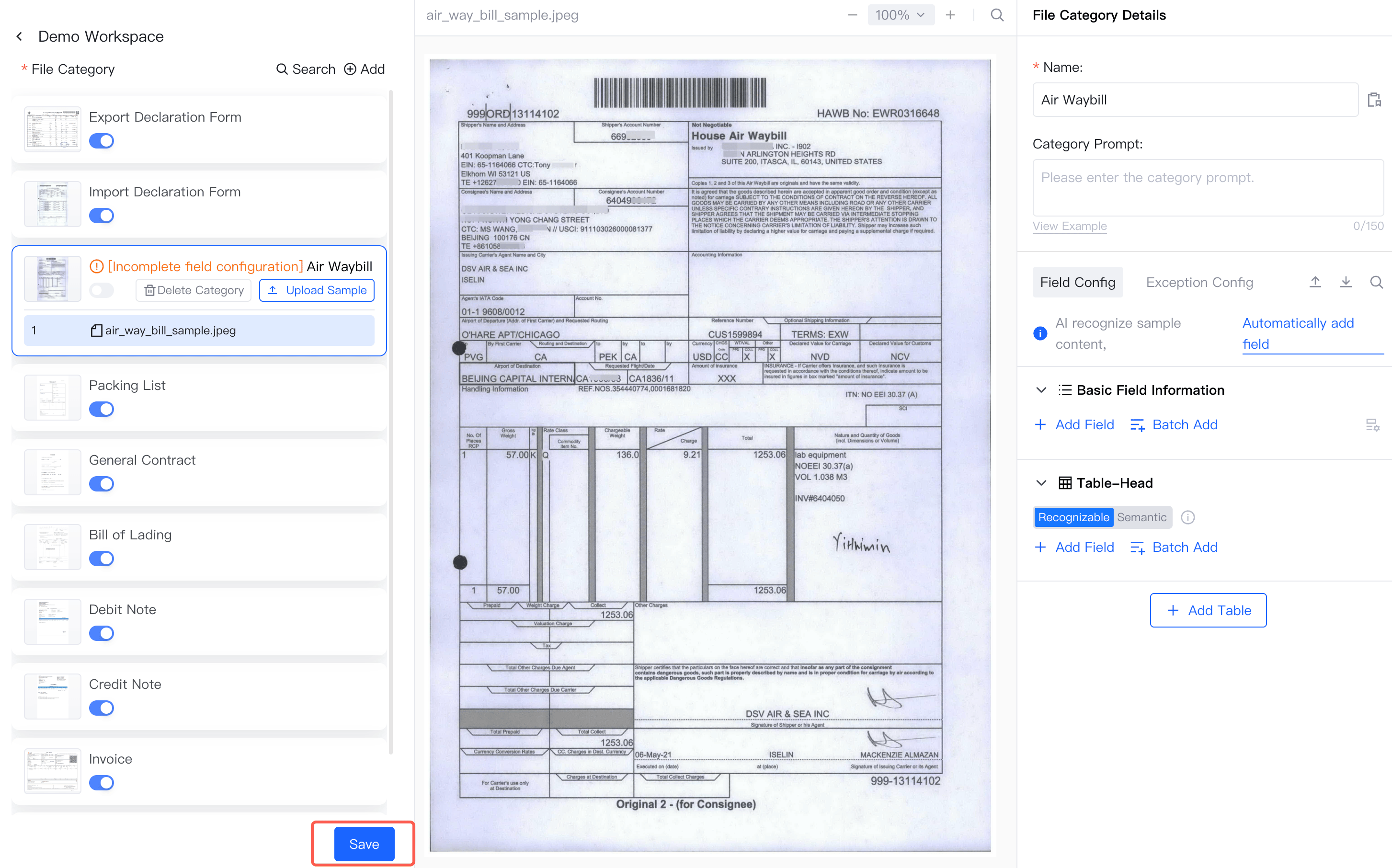
## 設定を保存

**保存** をクリックします

<img src="https://mintcdn.com/docflow/afoTfNkOjgAx6tmV/docflow/ja/images/setup_category_step_6-en.png?fit=max&auto=format&n=afoTfNkOjgAx6tmV&q=85&s=d93d2f5034b39aa398e689d514b414dc" alt="save" width="2906" height="1812" data-path="docflow/ja/images/setup_category_step_6-en.png" />